Log Work Items#
Once your GitLab project is created, you will need to add work items to represent the tasks that you need to complete towards your project goals.
Work Items#
A work item (also known as an issue or task on other platforms) is any task that you need to do for your project that has some beneficial outcome. You will normally have work items for every task that you need to perform in your project.
Work items are typically scheduled and assigned to a particular milestone. The team collectively decides what work items should be addressed in each deliverable (see plan a sprint). Decisions on what work items to address, and who will address them, are team decisions.
Work items include things like:
- Creating a design diagram to include in your documentation.
- Updating the build scripts to use a newer version of a library.
- Designing and implementing a new feature that you want in this milestone.
- Fixing a bug that a user points out to you, and writing new tests for it.
- Generating a software release and preparing it for your demo.
GitLab formally supports three types of work items: issues (defects), tasks (work) and incidents (problems). Issues and tasks are most relevent to this course.
Lifecycle#
Work items have a lengthy cycle, from when they are created, through when the work is done, and finally when they are complete.
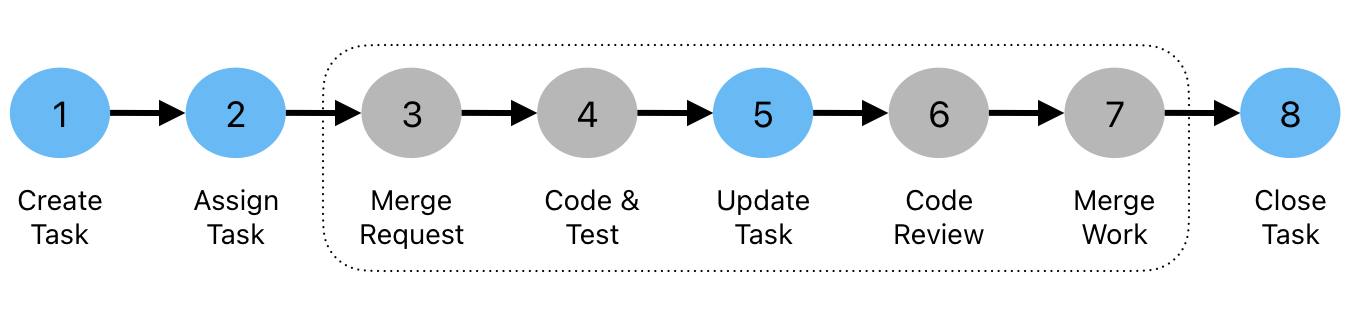
The diagram below shows the lifecycle of a task. The blue nodes represent actions that you perform on your tasks. The dotted region is your execution workflow. Create a task is the first thing you do when you identify work, and closing that task is the last action when it’s complete.
Creating a Work Item#
To create a new work items in GitLab:
- navigate to
Plan>Work items, and - click on the
New itembutton.
This will call up the default dialog for creating a work item.
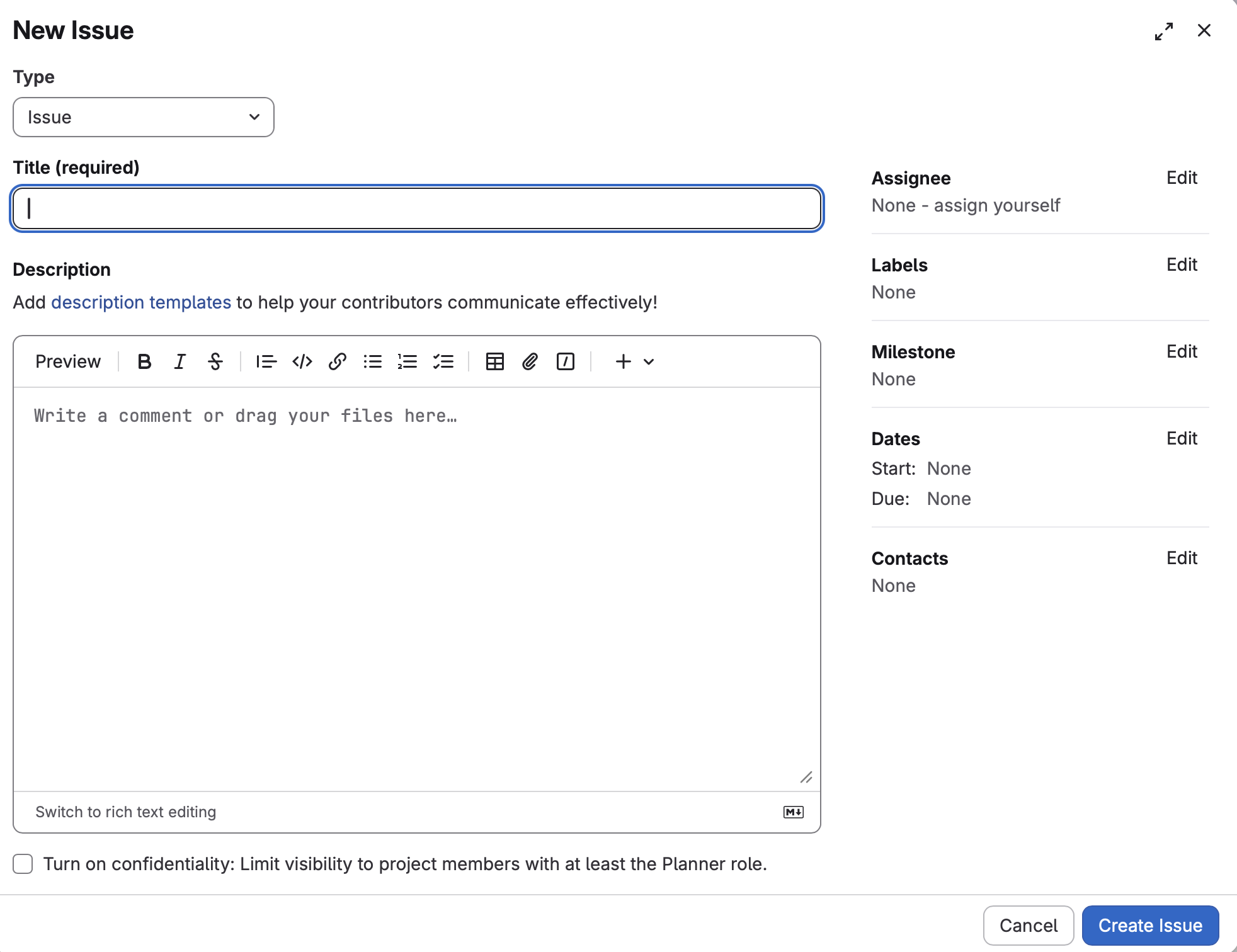
You can choose the work item type:
- Task: Track small units of work that take little time. A major feature might consists of multiple tasks, reflecting different parts of the design.
- Issue: Track tasks, features, and bugs. This is what you use for most of your project work.
- Incident: A problem report from a user, with details on how to reproduce a problem.
Other values should be set to the following by default:
- Title: a one-line description that summarizes the task.
- Description: details, including initial design, and implementation summary when its complete.
- Assignee: who is responsible for this; should be “None” until the group collectively assigns work.
- Labels: organizational labels e.g., front-end, database. These are optional.
- Milestone: which milestone the issue is associated with.
- Dates: start and end dates when the issue is scheduled. These are optional.
- Contacts: additional stakeholders. This is optional.
Assigning Work Items#
New work items should be unassigned until your planning meeting (see plan a sprint).
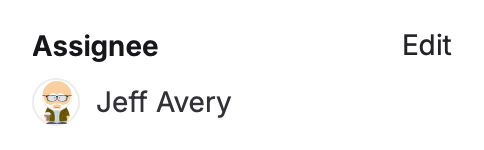
To assign a work item to a person on your team, just open the work item and change the Assignee from the properties sheet. Note that you can only assign work to people on your team.
Viewing Work Items#
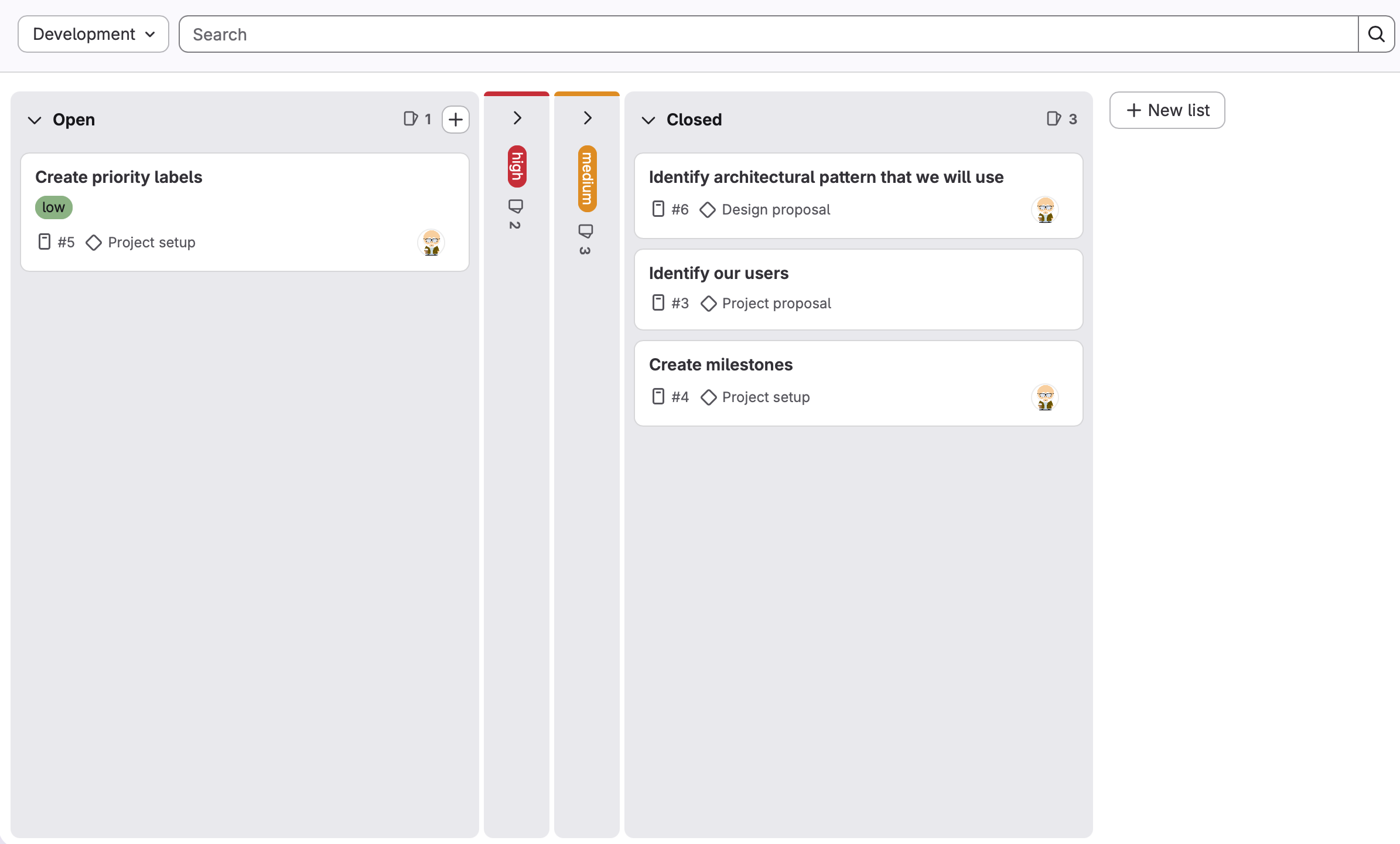
You should always be able to see an up-to-date view of your project, and assigned work items under the Issue Board for that milestone. See Plan > Issue Boards for details.
Updating Work Items#
There are three main situation when you update work items:
- When it’s assigned. At the start of each sprint, the team should discuss what work items they wish to complete and assign them to team members (as evenly as possible, taking into account circumstances).
- When work is performed. You should update your work items by adding comments. They should always be up-to-date, even when work is in-progress. (This is important in case you need to pause work and return to it later!)
- When it’s complete. You should change the status of the item and add details on how it was completed.