
CS125: Introduction to Programming Principles
General Debugging Procedures/Tips
Before you start
Before you start debugging, it is really important that your code is formatted properly (e.g., open and close braces are lined up). It will make locating errors much faster. Dr. Java includes a primitive Java Code Beautifier (a program that formats your code automatically). To use this utility, press Ctrl-A to highlight your entire code block, then press Tab. If you do not think the utility does an adequate job, you can search for a more sophisticated beautifier online. A good one to try would be Jacobe. To improve readability, it is also recommended to include some white space between blocks of code.
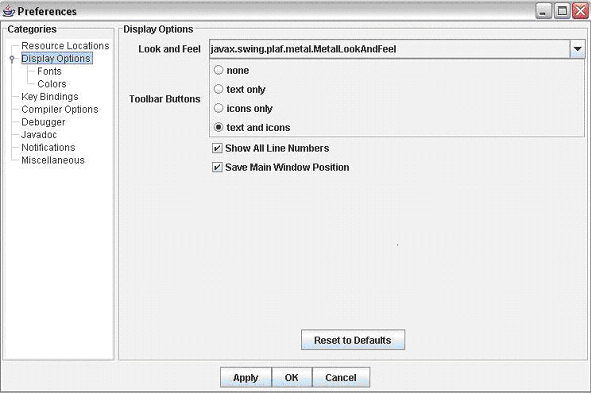
The Java Compiler outputs lines that contain run time errors. This is really helpful when debugging, as we do not have to look at all lines of code, instead focusing on a smaller block. By default, Dr. Java does not display line numbers. To turn on this option (and see the line that is generating the run time error), click on the Edit menu, and the Preferences option. Then, click on Display Options (second item on the left hand side), put a check mark for "Show all line numbers", and press OK. Below is a picture of what you should see when toggling on this option:
Types of Errors in Your Program
There are three basic types of errors that can exist in your program. They are:
a) Compilation Error
This type of error occurs when you do not follow Java syntax (rules and guidelines that all Java code must abide to). If there is a compilation error, the Java compiler will display an error message during compilation (the process of turning code into machine language). The program is never executed if such error existed.
b) Run-Time Error
This type of error occurs during the execution of your program. The program compiled without any problems. However, during execution, it encounters an error and stops executing at a certain line. The compiler will indicate which line of code is causing the problems.
c) Logic Error
The program compiles and executes without a problem. However, it does not do what is intended.
It is important that you can interpret error messages that the compiler displays. The message provides many useful clues to the problem at hand. Hence, you can debug your program much more efficiently if you understand its meaning. It is displayed in the Compiler Output pane (for a compilation error) or in the Interactions pane (for a run time error). Compilation errors are relatively easy to understand. Below is a screenshot of what they typically look like:

Sometimes, the compiler is not smart enough to pick out the exact line that needs to be fixed. However, with the help of this guide and experience, compilations errors should be easy to locate and fix. The most common errors are:
1) The compiler cannot recognize a symbol (usually variable name or method name). The error message displayed will have the following pattern:
Error: cannot find symbol
symbol: method{method name}(parameters)
or:
Error: cannot find symbol
symbol: variable {variable name}
2) The compiler thinks that bits of code are out of order, missing or at the wrong place. The error message displayed will have this pattern:
Error: '{symbol}' expected
On the other hand, run time error messages are harder to decode:
The first line indicates the type of error encountered. In this case, it involves mismatch of input types. Lines after the initial message specify where the error is coming from. They are listed in a reverse order of execution, that is, the top line is the last line of code executed. In the above example, You only have to worry about error messages originating from the classes you wrote, on the indicated lines. For example, you can ignore errors coming from Recognizing Bugs
You should be able to easily determine whether a bug exists in your program. If your program gives an error message, or does not output/perform what is expected, then there is a bug in your program.
By using different test cases, you can ensure that your program performs correctly under all conditions. You will learn more methodical testing approaches in another computer science course (CS134).
Isolating Bugs
Perhaps the most challenging step in the debugging process is isolating the location of the problem.
Isolating Compilation Errors:
As mentioned previously, the Java compiler does a relatively good job at isolating the source. If you do not think the highlighted line is the source of the problem, look at all the lines within the same scope. If you still cannot locate the bug, continue the search in the scope that is within the current one, if it exists. If not, proceed to the immediate outer scope that encompasses the scope of the highlighted line. For example, suppose we have:
The compiler will highlight the Isolating Run Time Errors:
The Java compiler does a very accurate job of indicating lines that are causing the error. Hence, it is very easy to locate the source of the problem. Please refer to the Understand Error Messages section for more details.
Isolating Logic Errors:
Logic errors can be much harder to isolate because there can be many causes. Often, it is helpful to determine the values certain variables hold during different points of a program’s execution. If the variables are not holding the correct value, we can then track down the cause.
One way of doing so is using the Dr. Java’s Debugger. Since you will encounter this technique during the lab, this guide will focus on a different approach: using What variables should you use Consider this problem:
Suppose integers 1 to 16 are stored in a 2d array:
In another 2d array of Strings, store either "Yes" if the corresponding element in the 2d integers array is divisible by 2 and 3. Store the String "No" otherwise. Print out the results in a format of
Suppose this is the solution we have:
When running this program, we get the following output:
Obviously, the result is incorrect, since it implies that all integers from one to sixteen are not divisible by both two and three. It might be difficult to trace the program by hand, since we have nested for loops. Instead, we can use What variables should we keep track of? The most important variable here is When we run our program again, we get the following output:
We can see right away that there is a problem with Now, the new output is:
This indicates that six and twelve are divisible by both two and three, which is correct.
There is not a fool-proof method to isolating logic errors. With practice, you can become a skilled debugger.Below are some other tips that may help in the process:
Eliminating Bugs
Once you have identified and isolated the bug, the next step is fixing it. Since you now know the cause, resolving the issue should not be difficult. This guide contains various solutions to errors that you often encounter, so this section will not cover any specific problems. However, if you have a logic error, you may need to modify your program significantly. Here are some general tips in that situation:
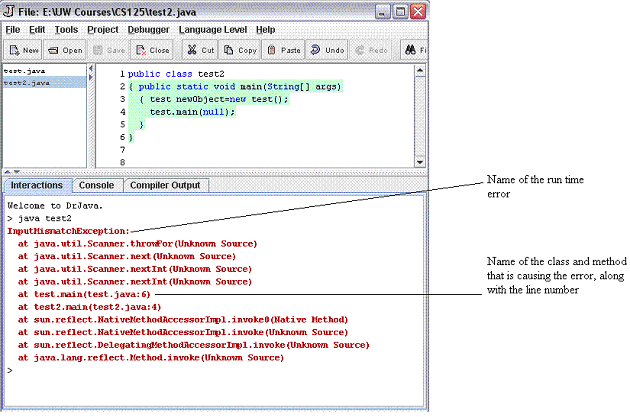
test2 calls the main method in test1. Then, the main method executes a method in the Scanner class (nextInt). In turn, nextInt executes the next method in the Scanner class, which threw the error message. Notice that all the lines follow the similar pattern of:
at {class name}.{method name}(source/line number)
java.util or sun.reflect.
	public static void main(String[] args)
  	{  int i = 5;
     	   for ( int p = 0; p < 5; p++ )
           { While ( i < p )
             { i ++;
             }
           }
        }
{ i++; line, and gives out the following error message: Error: ';' expected. So, the first line you would examine is the highlighted line – you do not see a mistake there. Next, look at lines in the current scope. Since i++; is the only line in the current scope, move on to the scope that is within the current one. Because such scope does not exist, you continue the search in the scope that encompasses the current one. This scope has the only one line: While ( i < p ) . You isolate the error by realizing that the keyword while is wrongfully capitalized.
System.out.println to print values on to the screen. This approach is a little bit faster then using the Debugger. However, you do not have as much control (since the Debugger allows you to run the program one line or one loop iteration at a time, whereas System.out.println would run your entire program at once).
println to display the value of? There is not a set rule, but good targets include counters in nested loops, variables in compound Boolean expressions or complex operations, and any other variables that are constantly changing throughout the program. Where should you place the println statements? Think of the general path a certain variable goes through in your program. It is good idea to place a println statement on lines that changes the value of that variable.
[ 1 ] [ 2 ] [ 3 ] [ 4 ]
[ 5 ] [ 6 ] [ 7 ] [ 8 ]
[ 9 ] [10 ] [11 ] [12 ]
[13 ] [14 ] [15 ] [16 ]
yes yes no no
yes yes no no
     String[][] info = new String[4][4];
     int num = 1; //this is the current number we are examining, num will hold the value 1 to 16
     for (int i = 0; i < info.length; i++)
     { for (int j = 0; j < info[0].length; j++)
        { if ( num % 2 == 0  &&  num % 3 == 0)
          { info[i][j] = "Yes";
          }
          else
          { info[i][j] =  "No";
          }
        }
        num++;
     }
     //output
     for (int i = 0; i < info.length; i++)
     { for (int j = 0; j < info[0].length; j++)
        { System.out.print(info[i][j]);
        }
        System.out.println();
     }
No No No No
No No No No
No No No No
No No No No
System.out.println to display variable values at different points of execution.
num, since we use it to determine if an element in the 2d integers array is divisible by two and three. Therefore, num is a good variable to keep track of. At what stage are we interested in the value of num? It would be useless if we put the println right after declaring num, since its value has not changed yet. We probably want to know its value during each iteration of the for loop, where num is incremented. Hence, we should place the println either before or after the num++ line. Suppose we add a println after the num++ line:
num++;
System.out.println("num has the value "+num);
num has the value 2
num has the value 3
num has the value 4
num has the value 5
No No No No
No No No No
No No No No
No No No No
num. It was suppose to take on values from one to sixteen. Instead, it takes on values two to five only. Since num is only changed four times (as evident by the four lines of output), we realize that the nested for loops are not incrementing num the correct number of iterations. However, the problem does not appear to be the for loops themselves. Having a closer look, we discover that num++ is placed in the wrong scope: it should be placed in the body of the most inner for loop. A correct solution would be:
     String[][] info = new String[4][4];
     int num = 1;
     for (int i = 0; i < info.length; i++)
     { for (int j = 0; j < info[0].length; j++)
        { if ( num % 2 == 0  &&  num % 3 == 0)
          { info[i][j] = "Yes";
          }
          else
          { info[i][j] =  "No";
          }
          num++;
        }
     }

     for (int i = 0; i < info.length; i++)
     { for (int j = 0; j < info[0].length; j++)
        { System.out.print(info[i][j]+" ");
        }
        System.out.println();
     }
No No No No
No Yes No No
No No No Yes
No No No No
// or /*). At first glance, you may find that certain lines are completely wrong. They may not be useless. You may want to reuse them as part of your solution. More importantly, if the new code caused even more problems than the old code, you can revert back to what you had before.